前面筆者在Prepare android development environment with ADT(Android Developer Tools) Bundle for Windows這篇介紹了一下Android開發環境的建立,接著來看要怎樣建立我們的第一支Android App。
首先要先將eclipse開啟…
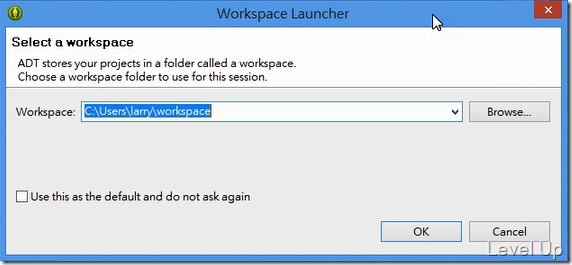
開啟後會詢問工作目錄的位置,也就是我們的Android App專案要存放的位置。決定好工作目錄的位置後,按下OK按鈕繼續。
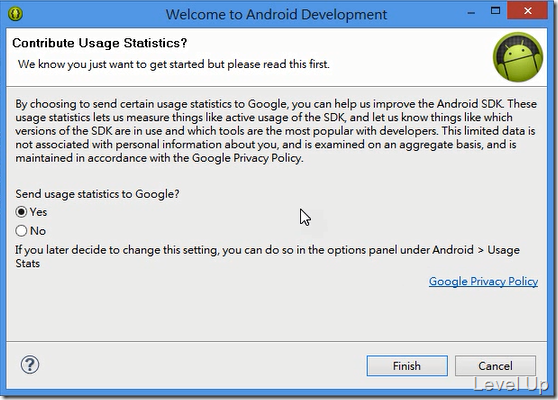
會詢問一下是否要將使用的統計資訊回傳給Google,這邊視自己的需求選取後按下Finish按鈕。
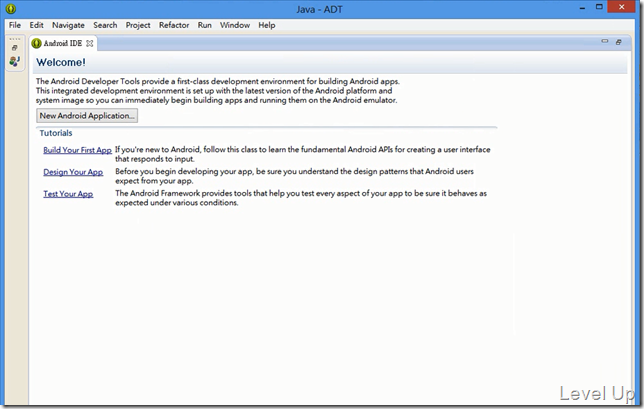
eclipse主畫面會開啟…
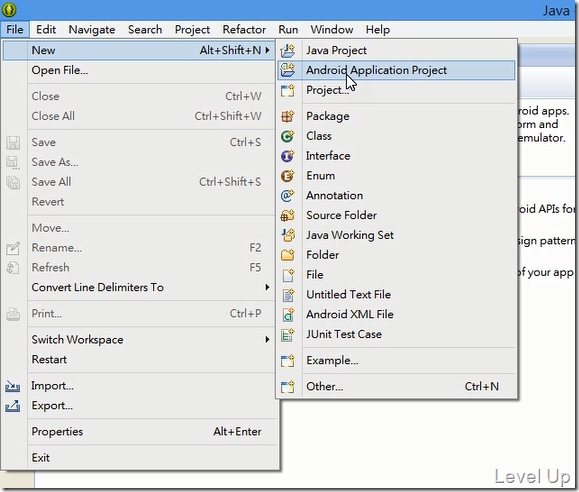
點選[File/New/Android Application Project]選單選項,開始建立Android專案。
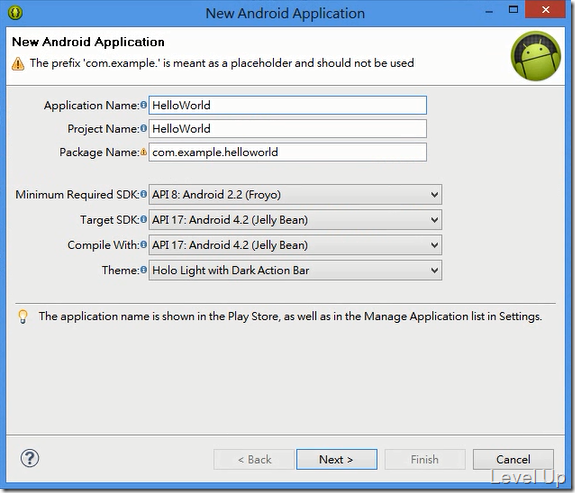
在彈出的New Android Application對話框中,我們可以設定這個Application的名稱、專案的名稱、組件的名稱、以及支援的SDK…等。設定好後按下[Next>]按鈕繼續。
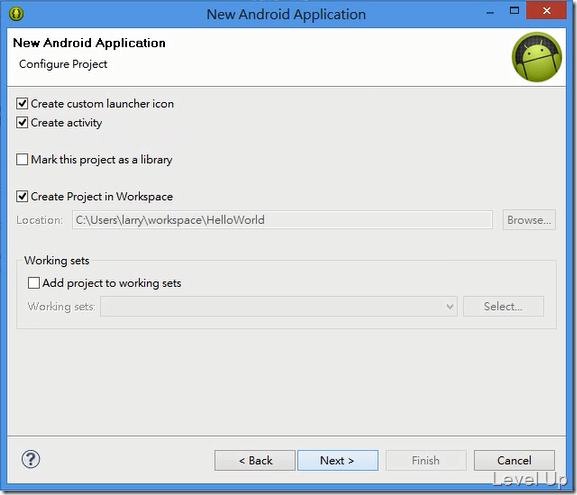
接著要決定這個Application是否要有Activity、是否要有custim launcher icon、以及工作目錄位置…等等。設定好後一樣按下[Next>]按鈕繼續。
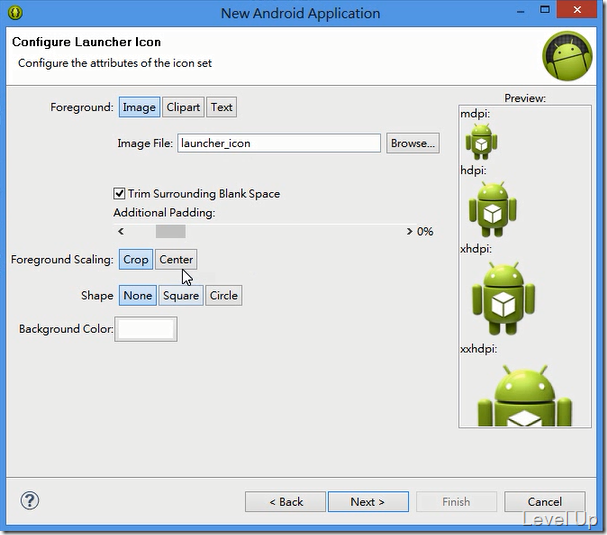
這邊如果剛剛有勾選Create custom launcher icon的話,會開始進行custom launcher icon的設置。內建有使用現有圖片的方式…
使用系統提供的圖示…
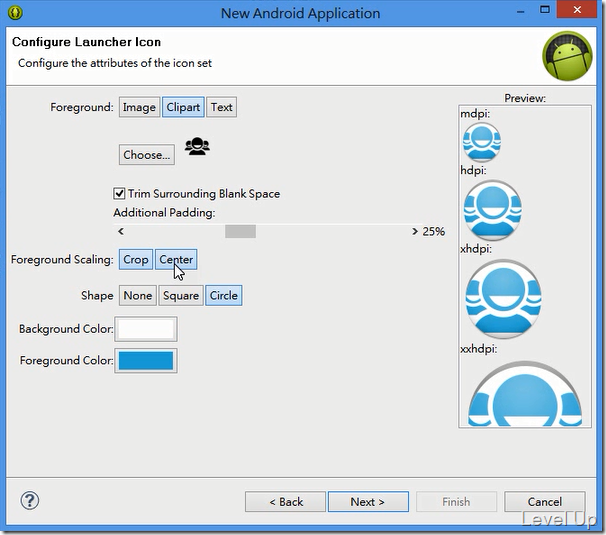
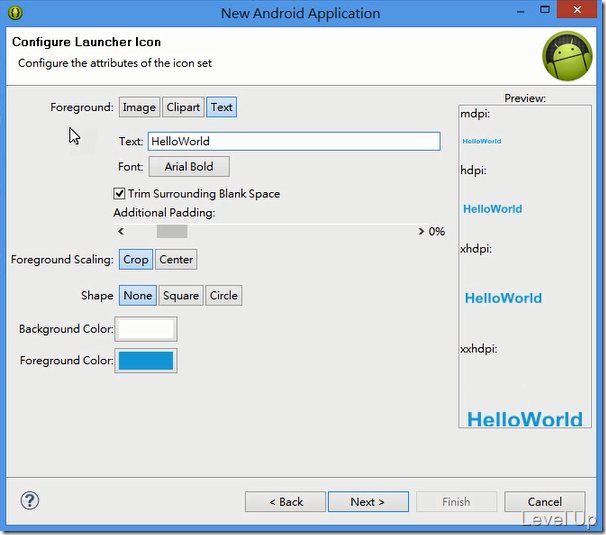
或是透過自行輸入文字的方式來建立custom launcher icon。提供簡易的設定像是前景色、背景色、按鈕形狀、縮放方式…等等,開發人員能很容易的產生custom launcher icon。按下[Next>]按鈕繼續。
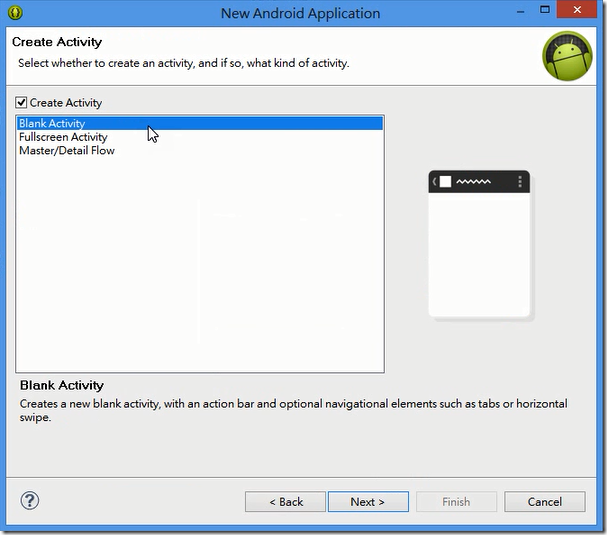
如果剛剛有勾選Create activity,會出現Create Activity的設置頁面。這邊選取你想要建立的Activity樣板,按下[Next>]按鈕繼續。
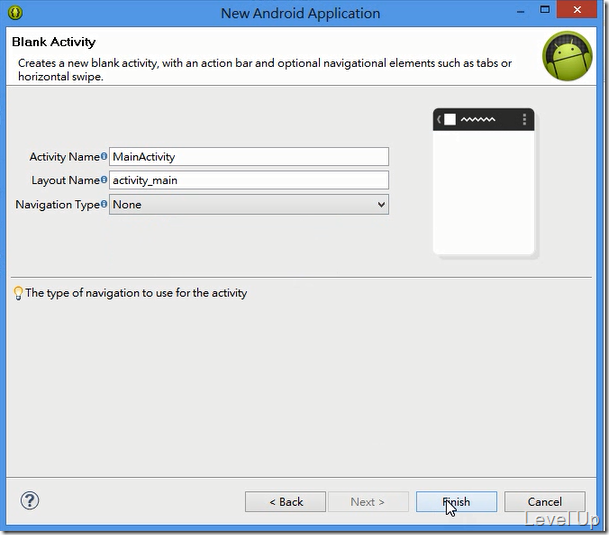
設定Activity的名稱…等細部資訊後,按下[Finish]按鈕結束新專案的建立動作。
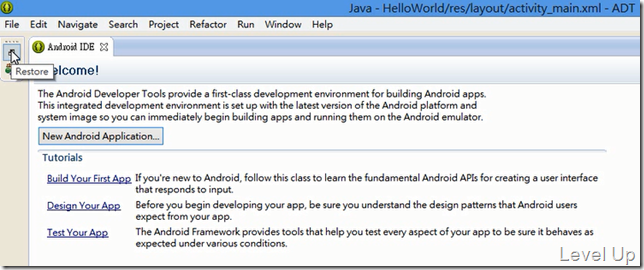
回到eclipse主頁面,剛新建的專案已經載入。不過第一次使用時可能會像下面這樣一些視窗是隱藏的,只看的到歡迎頁面,這時可以按下Restore按鈕。
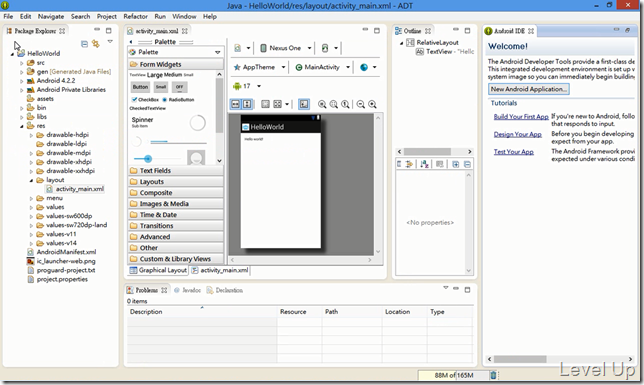
隱藏的視窗就會還原,畫面會變得下面這樣,可以看到工具箱、設計界面、專案內容、元件屬性…等視窗,設計界面中也已有最基本的HelloWorld程式。
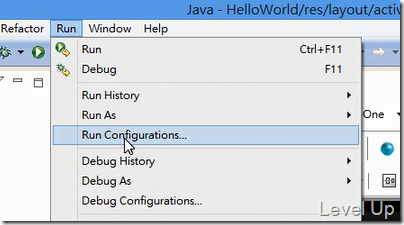
這邊我們可以選取[Run/Run Configurations…]選單選項。
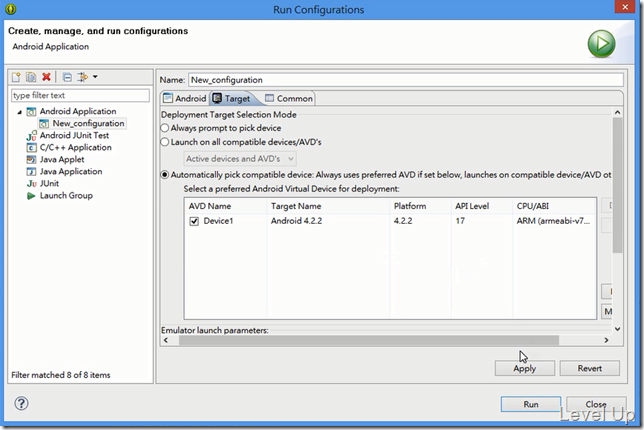
開啟Run Configuratios對話框,選取左側的Android Application。
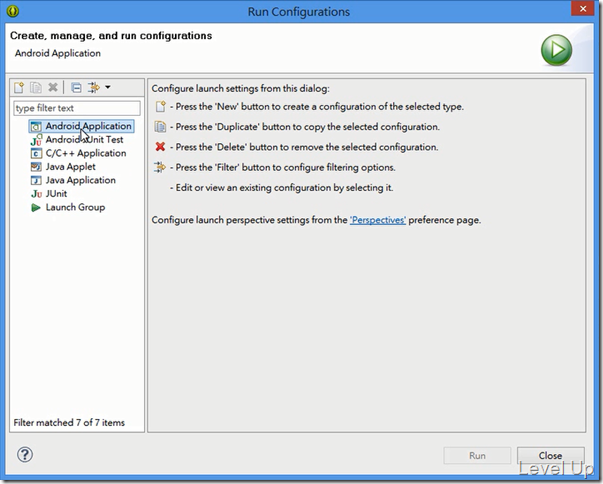
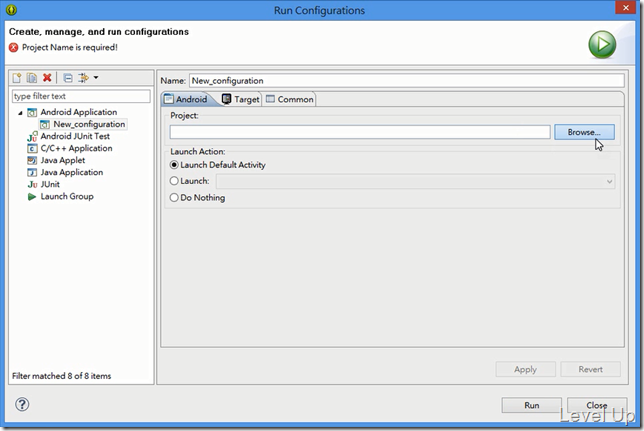
切到第一個New_configuration節點,然後點選右側的[Browse…]按鈕。
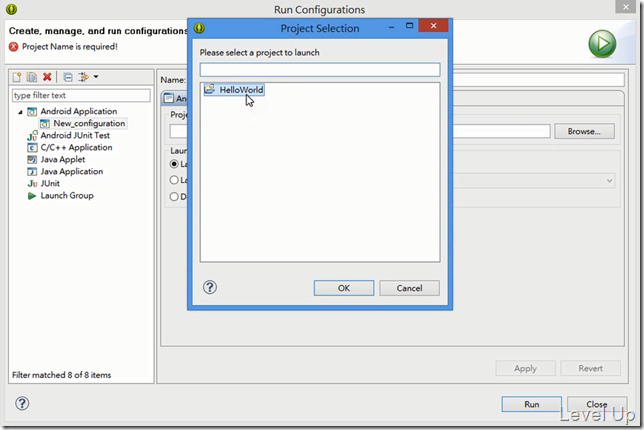
設定目前要運行的專案。
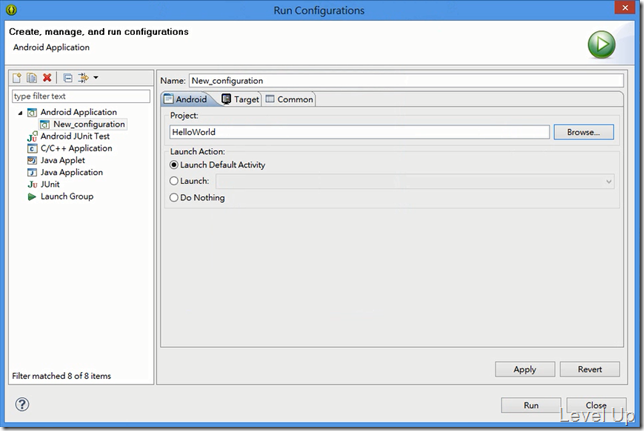
然後切至Target頁面,決定是要指定特定的AVD來運行、所有相容的AVD或裝置、或者是每次運行前詢問 (AVD的設定可參閱筆者Managing AVDs with AVD Manager這篇)。設定完後按下[Apply]按鈕套用,並點選[Run]按鈕實際的將程式運行起來。
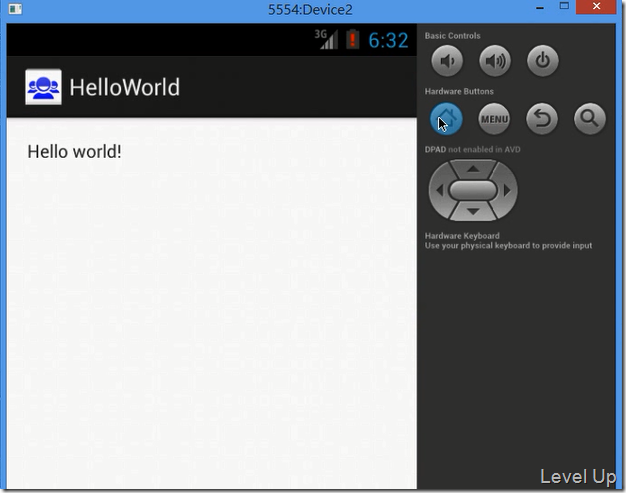
模擬器會開始啟動,模擬器啟動完成Application也回開始佈署到模擬器上面,佈署完成Application就會運行起來,運行的畫面會像下面這樣: